Why a dynamic QR code beats a static one in slides
A deck gets reused — the same training slides, the same pitch, the same webinar recording shared for months. A static QR code on a slide can't follow that: if the link changes, the code is dead. A dynamic code lets you repoint a qr code for presentation slides whenever the destination moves, without re-exporting the deck.
You also get analytics, which is gold for a presenter: see how many people actually scanned your call-to-action slide, so you know whether your QR code for slides is doing its job.
How to add a dynamic QR code to PowerPoint
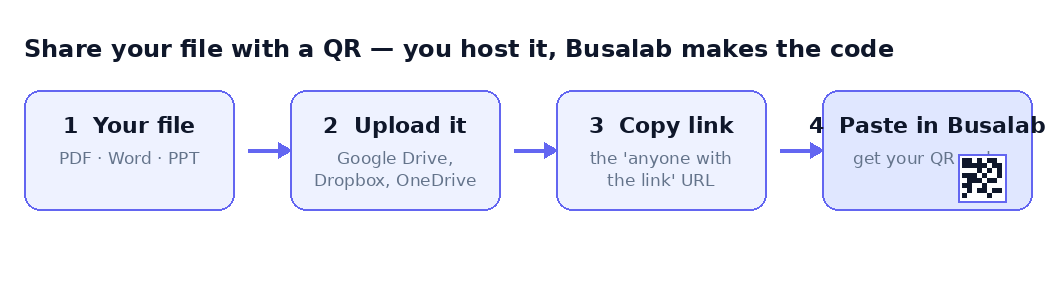
Create your code in Busalab, set your colours and logo, and download it — choose SVG so it stays sharp on a big screen, or PNG for quick use. In PowerPoint, go to Insert ▸ Pictures, add the file, and position it on your slide. That's how to add a QR code to PowerPoint — and to insert a QR code in PowerPoint on every slide that needs one, just repeat.
Present or export your deck as normal. The qr code for ppt slides is now part of the presentation, but you keep control of where it leads.
Edit and track after the deck is shared
This is the payoff. Once your slides are sent round or published, you can still repoint the code from Busalab and see the scans — how many, when, and from which device. A presentation you gave last month can keep sending people to an up-to-date link today.
With no scan limit or expiry, a powerpoint qr code you make now keeps working for as long as the deck is in use.
Free, unlimited and on-brand
Every code is free to create, host and update, with unlimited scans and no expiry. Brand each one with your colours and logo so it fits your template. Whether you need a qr code for presentations, a single qr code powerpoint slide, or a code for a whole training series, it's the same free tool.
It works the same in Google Slides and Keynote too — design anywhere, just drop in a smarter code.